
Who can do this: You need to be an admin on the brand (the owner or someone granted the Admin role), and brand sharing requires the Brand Pro plan or higher.
The three ways to share a brand
- Invite a person by email - grants one specific person access. Good for a freelancer or a single stakeholder.
- Share with an organization you own - pick one of your own orgs from the list. Everyone in it gets access at once.
- Share with an organization you are not in - create a share link and send it over. This is the option this guide covers.
Create a share link
- Open the brand and choose Share.
- Switch to the Organization tab.
- Under Share with an organization you’re not in, pick the role the other organization should get (see below).
- Click Create Share Link. The link is copied to your clipboard automatically.
- Send the link to an owner or admin of the other organization, by email, Slack, or however you normally reach them.
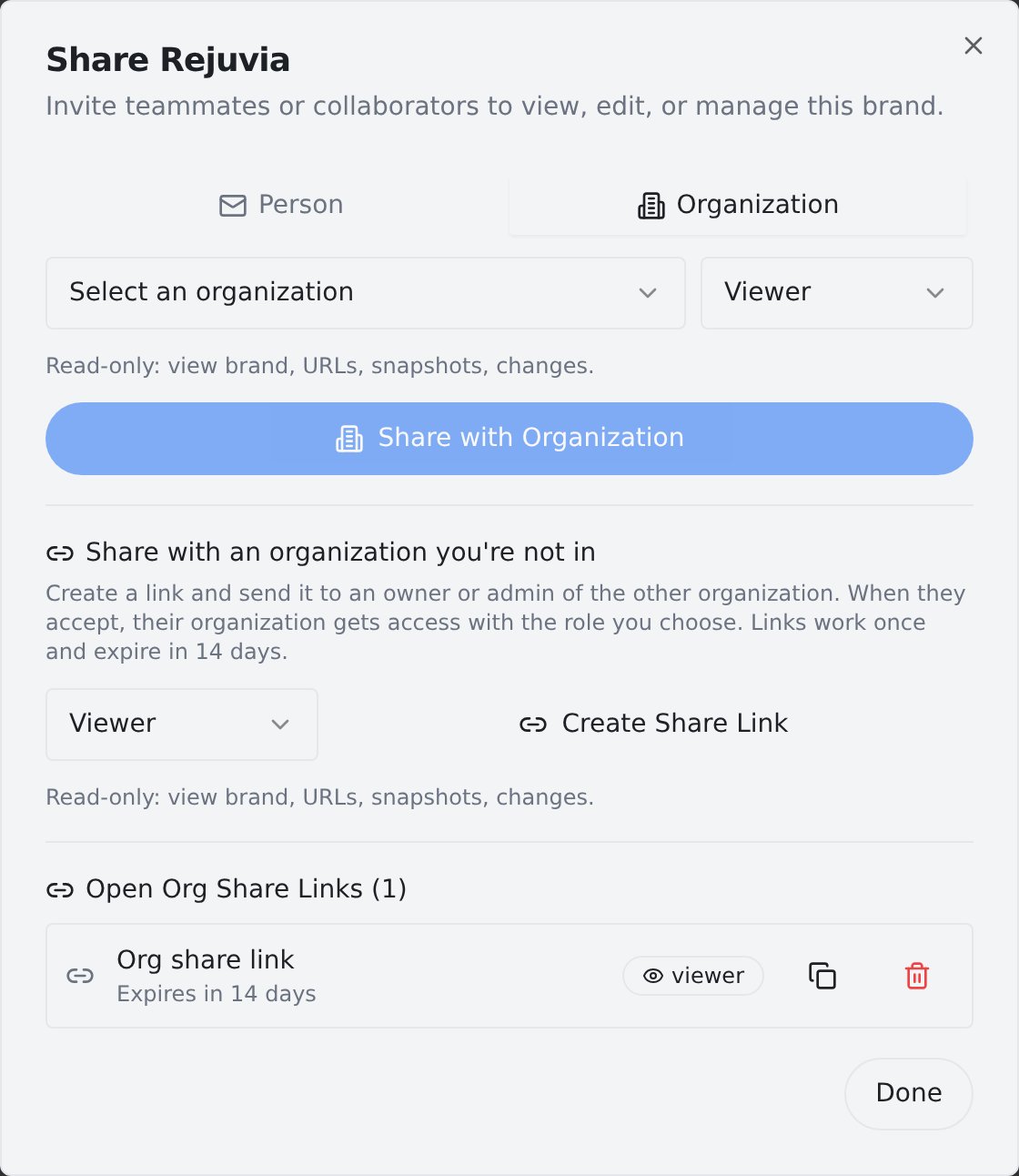
The Organization tab of the Share modal. Open links appear at the bottom, where you can copy or revoke them.
What each role can do
- Admin - manage the brand, URLs, snapshots, and other grantees.
- Editor - add and edit URLs and dismiss changes. Cannot manage access.
- Viewer - read-only: view the brand, URLs, snapshots, and changes.
- External Viewer - read-only, intended for outside collaborators such as agencies or advisors.
Accepting a shared brand
This part happens on the other side, so feel free to forward these steps along with your link.- Open the share link. You will be asked to sign in (or create an account) if you are not already signed in.
- Check what is being shared: the page shows the brand name, the role, and who created the link.
- Pick which of your organizations should receive access. Only organizations where you are an owner or admin appear here.
- Click Accept Shared Brand. The brand immediately shows up for everyone in that organization.
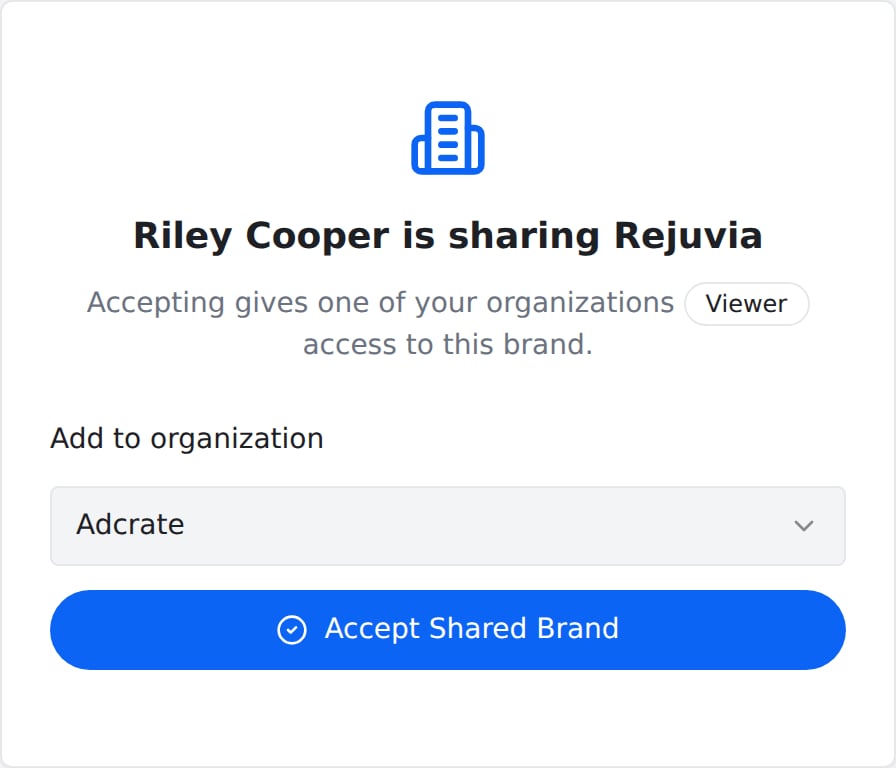
The recipient sees the brand, the role, and who shared it, then chooses which of their organizations gets access.
If the recipient is not an owner or admin of any organization, the page tells them so. They should forward the link to an owner or admin of their org, or set up an organization of their own first if their plan includes teams.
After acceptance: managing access
Once the link is accepted, the organization appears under People & Orgs With Access in the Share modal. From there you can change its role or revoke access entirely at any time. Sharing again with the same organization simply updates its role, it never creates a duplicate.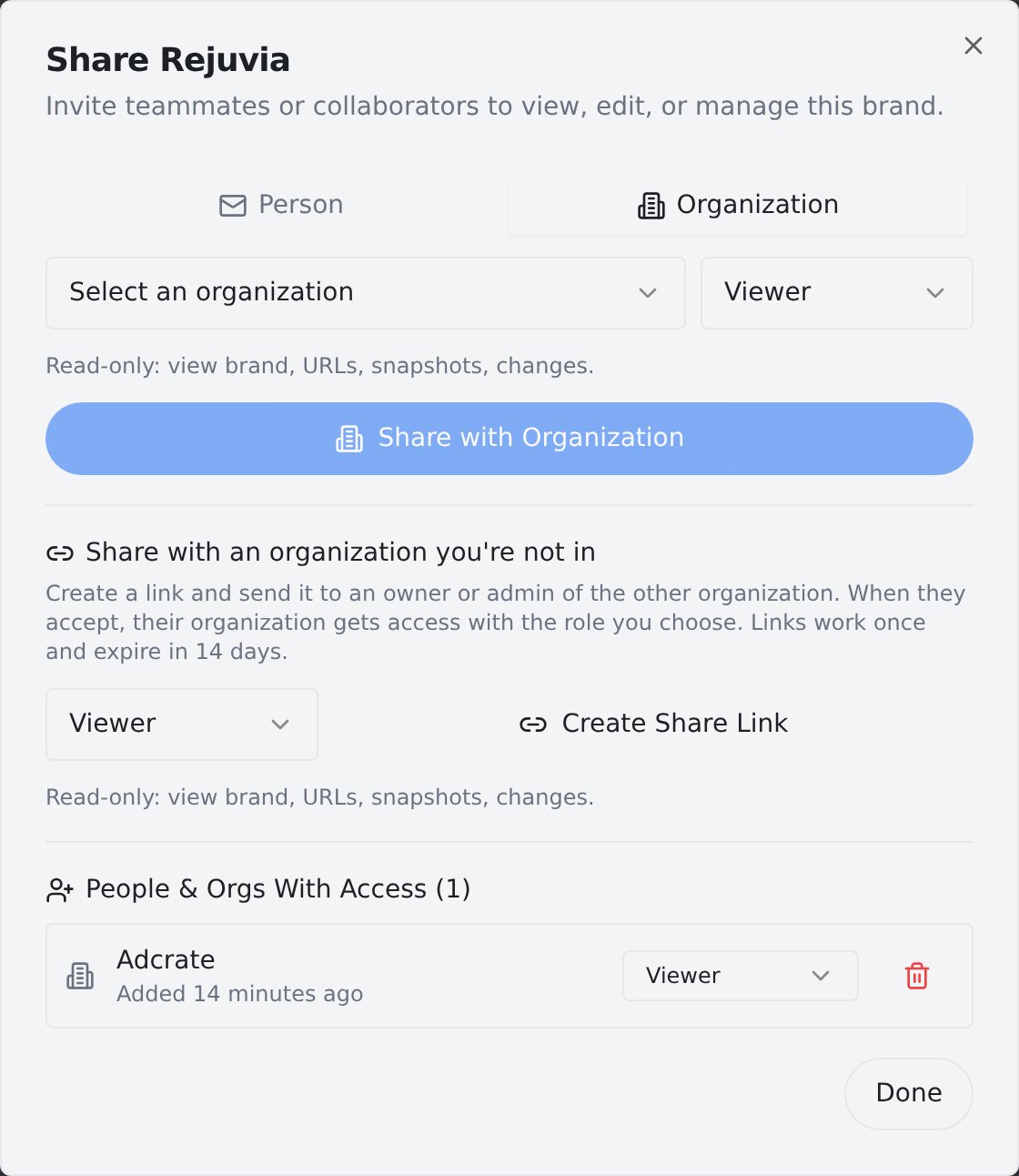
After acceptance, manage the organization like any other grantee: change the role or revoke access.
What does it cost the organization that accepts?
What does it cost the organization that accepts?
Nothing. Shared brands never count against the accepting organization’s plan limits, and snapshot usage keeps billing to the brand owner.
The link says it is expired or already used. What now?
The link says it is expired or already used. What now?
Links work once and expire after 14 days. Ask the brand admin to create a fresh link from the Share modal, it only takes a moment.
Can I choose the wrong role and fix it later?
Can I choose the wrong role and fix it later?
Yes. Change the role any time from People & Orgs With Access in the Share modal, or create a new link with a different role; accepting it updates the existing access instead of erroring.
How do I stop sharing?
How do I stop sharing?
Before the link is accepted, revoke it under Open Org Share Links in the Share modal. After acceptance, remove the organization from People & Orgs With Access. Access ends immediately either way.